Google Play ASO: writing a title, short description and full description that rank
How Google Play search reads your listing, and how to write the 30-character title, 80-character short description and 4,000-character full description.
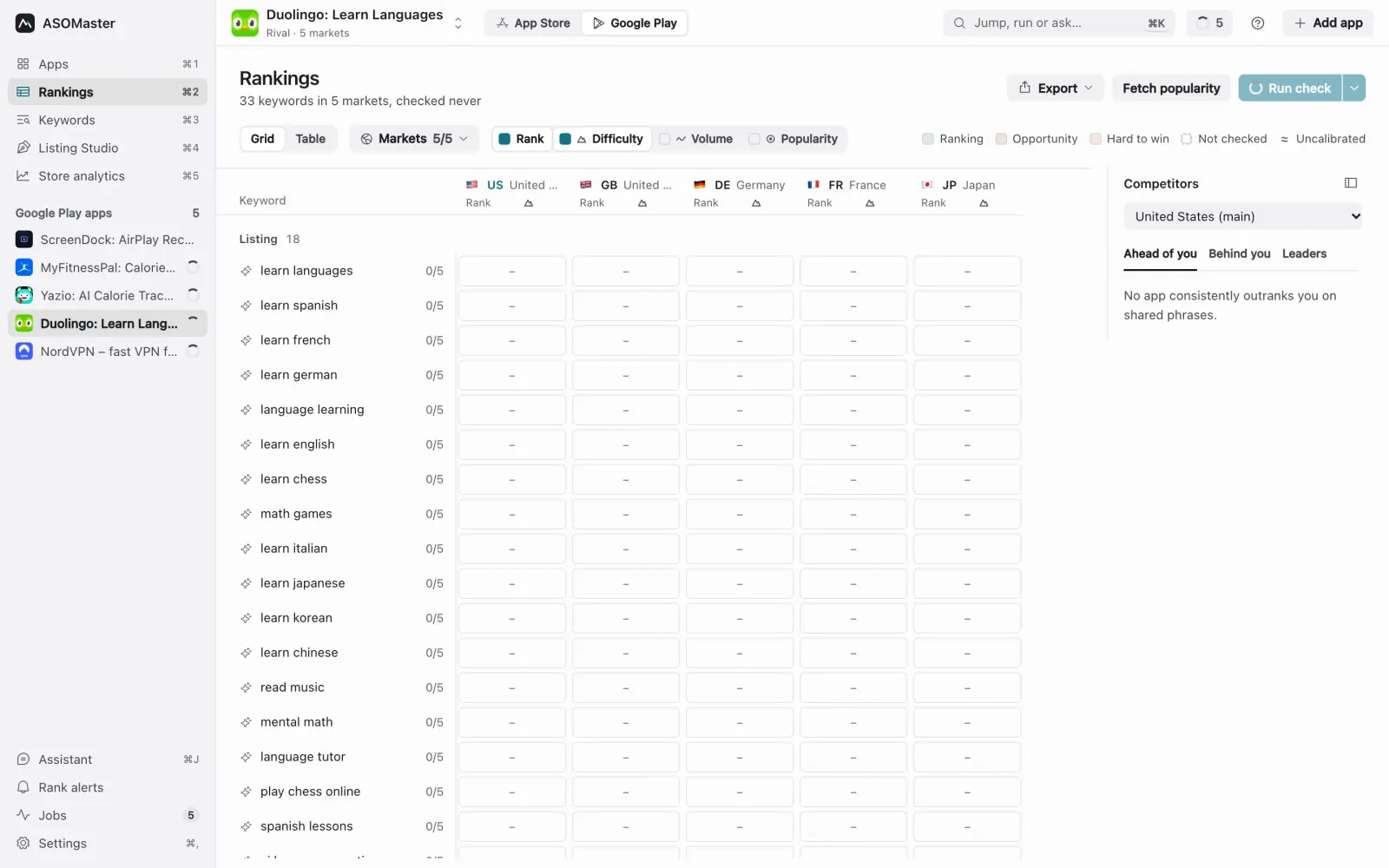
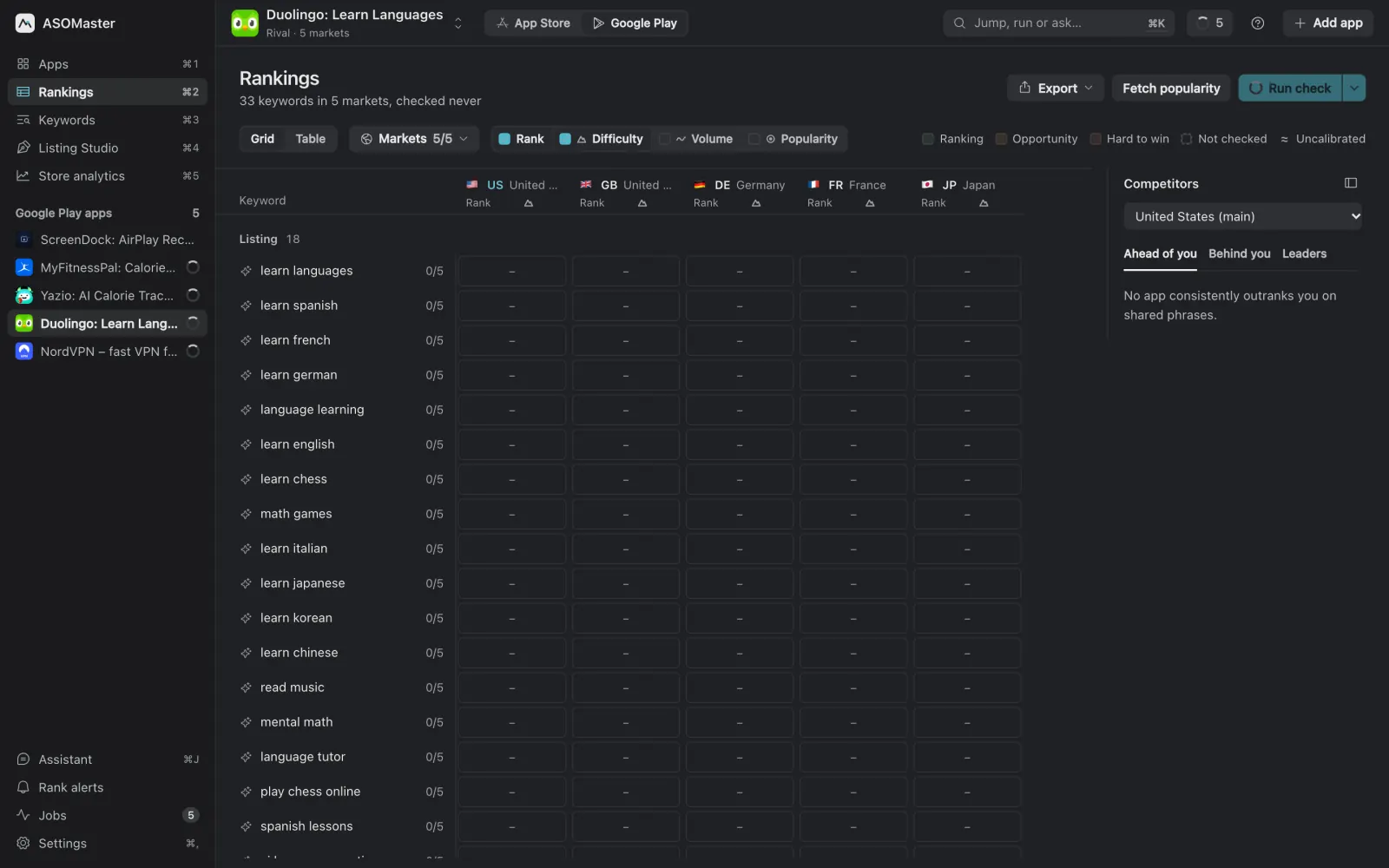
Google Play and the App Store look alike from the outside, but they read your listing differently. Google Play has no hidden keyword field. Instead it indexes the visible text: the title, the short description and the full description. That means every word a person can read on your listing can help it be found, and every word you add for search also has to read well. This guide covers how to write each field, what Google's policies forbid, and how to check whether your changes worked.
The examples use Ledgerly, a fictional budget app for iPhone and Android.
What does Google Play search read?
Google Play has no hidden keyword field. The text that can help you be found is the text people see: the app title (30 characters), the short description (80) and the full description (4,000), plus your developer name. Google says store listing text helps users discover your app and recommends SEO practices in the description, within its policies.
The source for that is Google's Play Console Help article Get discovered on Google Play search; the limits are in Create and set up your app. Google doesn't publish how much weight each field carries, so the last column below reflects what ASO practitioners widely observe.
| Field | Limit | Visible | Used for search |
|---|---|---|---|
| App title | 30 characters | Yes | Yes, strongest |
| Short description | 80 characters | Yes, at the top of the listing | Yes |
| Full description | 4,000 characters | Yes, behind "About this app" | Yes |
| Developer name | Yes | Yes |
Beyond the text, Google also weighs signals you can't type: install volume, ratings, engagement and app quality. Good text gets you considered; good behaviour keeps you there. No change to your listing can guarantee a position.
Which Google Play metadata rules matter for ASO?
The title must be 30 characters or less, with no emoji, no ALL CAPS unless it's your brand, and no claims about price, ranking or promotions such as "best", "#1" or "free". Descriptions must not be misleading or stuffed with keyword lists. Listings that break these rules can be rejected or removed.
Google enforces this through its metadata policy, which is stricter than most people expect. The parts that matter for ASO:
- The title must be 30 characters or less.
- No emojis, emoticons or repeated special characters in the title, icon or developer name.
- No ALL CAPS unless it's part of your brand.
- No text in the title, icon or developer name that refers to store performance, ranking, price or promotions: "#1", "best", "top", "free", "sale" and similar.
- No misleading, irrelevant or excessive metadata, no keyword blocks or lists of words, and no unattributed user testimonials in the description.
Listings that break these rules can be rejected or removed, so treat them as hard limits, not suggestions. The practical effect is that Google Play rewards descriptive, natural text over clever tricks.
Step 1: choose your target phrases per field
Start from a researched list: phrases with your current rank, demand and difficulty in each market. The process is the same as for the App Store (see the keyword research guide), with one difference: Google Play results are often less dominated by exact title matches and more by overall relevance across the listing, so long-tail phrases in the description can rank.
For Ledgerly, the US research might give:
| Phrase | Rank | Demand | Difficulty |
|---|---|---|---|
| budget planner | 14 | high | 58 |
| expense tracker | 27 | high | 71 |
| bill reminder | 9 | medium | 34 |
| money manager | not ranked | high | 83 |
| budget app for couples | 41 | low | 22 |
| monthly budget | 18 | medium | 45 |
Assign phrases to fields by value:
- Title: your single most valuable winnable phrase. Here: "budget planner".
- Short description: one or two more phrases from the push group: "expense tracker", "bill reminder".
- Full description: everything else, including long-tail phrases like "budget app for couples" and "monthly budget".
Step 2: write the title
The title pattern that works on Google Play is the same as on the App Store: a short brand plus a descriptor.
Ledgerly: Budget Planner(24/30)
Google's own tips in the discovery article: keep the title unique and focused, avoid generic terms on their own, and don't use subtle misspellings. Titles can be shortened on some devices, so put the brand and the core phrase first.
What not to do:
Ledgerly - #1 Budget App FREEbreaks the policy twice ("#1", "FREE").Budget Planner Expense Tracker Moneyreads as a keyword list and risks rejection.
Step 3: write the short description
The short description is the line people read under your screenshots before they decide to scroll. It has 80 characters and is indexed, so it does two jobs: it sells, and it adds your next-most-valuable phrases.
Good:
Expense tracker and bill reminders that keep your monthly budget on track.(74/80)
This covers "expense tracker", "bill reminder" (singular and plural forms are usually matched) and "monthly budget", and still reads as a sentence. Avoid repeating the title word for word; "budget" appears in both here because "monthly budget" is a separate target phrase.
Bad:
Budget, budget planner, expense, expenses, money, bills, trackeris a word list and breaks the metadata policy.
Step 4: write the full description
The full description is where Google Play differs most from the App Store. On the App Store the description doesn't affect search. On Google Play it does, and you have 4,000 characters.
A structure that works for both people and search:
- First 2 or 3 lines: restate what the app does with your core phrases. Many people never expand the description, and Google's help suggests putting the most important text where it's visible without scrolling.
- Feature sections: one short paragraph or bullet group per main feature, each naturally using one or two target phrases.
- Use cases: who it's for, in the words they'd search with ("for couples", "for students", "for freelancers").
- Trust and details: privacy, sync, supported currencies, offline use, contact.
Here's how a section might read for Ledgerly:
Plan a monthly budget in minutes
Set a budget for each category, and Ledgerly shows how much is left
for the month as you spend. See which categories run over and move
money between them with one tap.

Track every expense
Log an expense in two taps or import your bank's CSV export. Ledgerly
sorts expenses into categories and shows your spending by week and month.

Never miss a bill
Add your rent, subscriptions and utilities once. Bill reminders arrive
a few days before each due date.

Built for couples and shared homes
Share a budget with your partner or housemates...
How often should a phrase appear?
There's no published number from Google, and anyone who quotes a precise "keyword density" target is guessing. What's widely observed:
- A phrase that appears once in a natural sentence can rank, especially for long-tail searches.
- Repeating your two or three core phrases a handful of times across a long description helps establish relevance.
- Repeating a phrase in every sentence reads as spam to people and can count as keyword stuffing under the policy.
A rule of thumb: mention each core phrase three to five times across 4,000 characters, each secondary phrase once or twice, and read the whole thing aloud. If a sentence exists only to hold a keyword, rewrite or delete it.
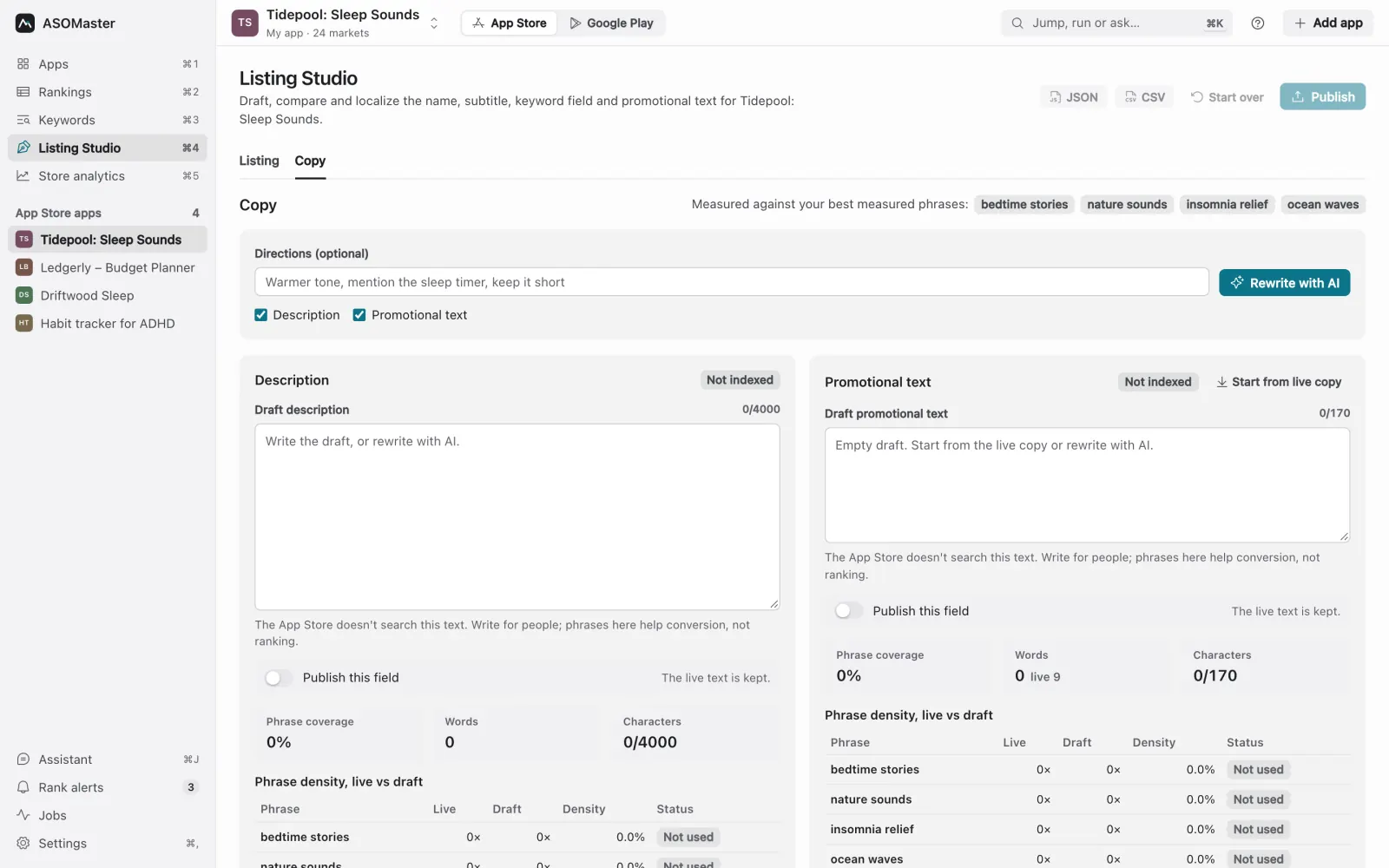
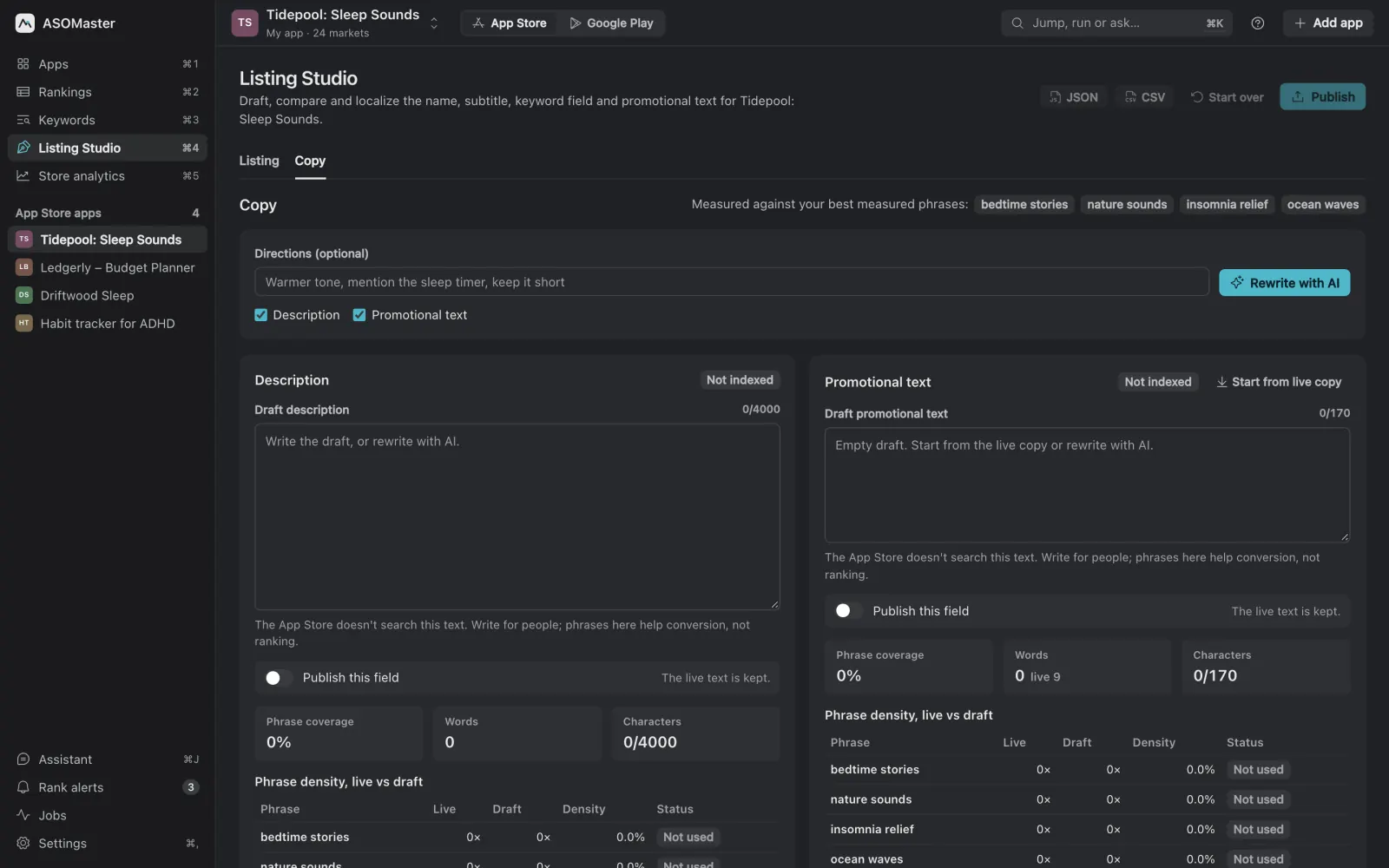
Counting phrases by hand across 4,000 characters is tedious. Any text tool can do it; in ASOMaster the Copy step shows how often each target phrase appears in the live text and in the draft side by side, so you can see what you added and what you lost before publishing.
Step 5: localize, don't just translate
Google Play lets you add translations for each language, and it can also show machine translations to users when you haven't provided one. A machine translation helps people read your listing; it doesn't target the phrases locals search for.
For the markets that matter, write the title, short description and at least the opening of the full description in the local language, using researched local phrases. Google's Translate and localize your app help article covers the mechanics in Play Console. The localization guide covers why the local phrase is often not the dictionary translation, with examples.
Google Play also supports custom store listings for specific countries, which lets you tailor text to a market beyond its language. They're worth considering for a large market where your positioning differs.
Step 6: release and measure
Unlike the App Store, Google Play store listing changes don't require a new app release; you can update the text in Play Console and it goes through review on its own. That makes it tempting to change things often. Resist it:
- Record your ranks for every target phrase in every market before the change.
- Change one field at a time when you can, or at least keep your best-ranking phrases stable.
- Wait one to two weeks. Google Play rankings settle more slowly than people expect, and they move for reasons unrelated to your text.
- Compare ranks for the whole group of target phrases, not one phrase on one day.
- Check conversion in Play Console's store listing statistics: a change that adds ranks but loses installs isn't a win.
Store listing experiments in Play Console let you test graphics and descriptions against each other with real traffic. They measure conversion, not search ranking, but they're the best way to know whether a description that ranks better also persuades better.
A complete example
Before:
- Title:
Ledgerly - Short description:
The smart way to manage your money. - Full description: 900 characters, mostly about design, mentions "budget" twice.
After:
- Title:
Ledgerly: Budget Planner - Short description:
Expense tracker and bill reminders that keep your monthly budget on track. - Full description: 3,400 characters in six sections; "budget planner" four times, "expense tracker" four times, "bill reminder(s)" three times, long-tail phrases ("budget app for couples", "shared budget", "CSV import") once or twice each.
What to expect: the title change typically has the biggest effect on "budget planner". Long-tail phrases in the description often start ranking within a couple of weeks if competition is light. High-difficulty phrases like "money manager" may not move at all; that's a signal to keep it as a long shot rather than rework the whole listing around it.
What are the most common Google Play ASO mistakes?
Copying the App Store listing, writing a slogan as the short description, adding keyword lists to the description, putting performance claims in the title, hiding what the app does below the first lines, and changing everything every week so you can't tell which change worked. Each one costs either rankings or the ability to learn from them.
- Copying the App Store listing. The App Store keyword field has no equivalent, and the App Store description isn't written for search. Write the Google Play text for Google Play.
- A short description that's a slogan. "Money, simplified." says nothing searchable.
- Keyword lists at the end of the description. Explicitly against the policy.
- Performance claims in the title. "Best", "#1", "Top" and "Free" in the title break the rules.
- Ignoring the first lines. Most people never expand the description. Lead with what the app does.
- Changing everything weekly. You lose the ability to tell which change did what.
Summary
- Google Play indexes the title, short description and full description. There's no hidden keyword field.
- Title: brand plus your most valuable winnable phrase, under 30 characters, no emojis or performance claims.
- Short description: one natural sentence carrying one or two more target phrases, under 80 characters.
- Full description: structured sections, core phrases a few times each, long tail once or twice, no keyword lists.
- Localize with researched local phrases, not just translation.
- Measure ranks and conversion before and after, over weeks.
ASOMaster checks ranks in 53 Google Play markets alongside the App Store, and its Listing Studio writes Play listing edits when you choose to publish. See ASOMaster for Google Play, the free Google Play listing checker or pricing.