App Store screenshot generator
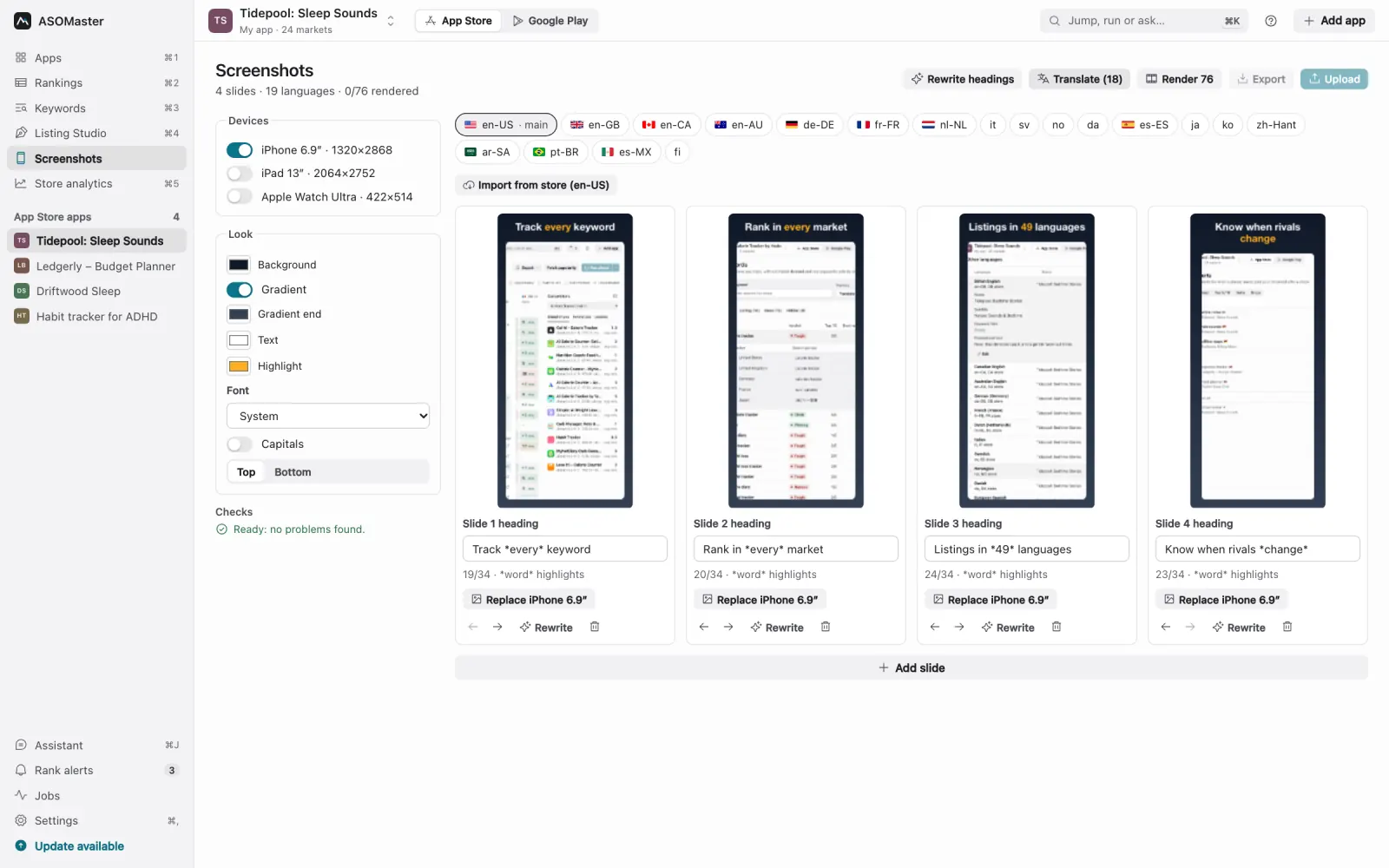
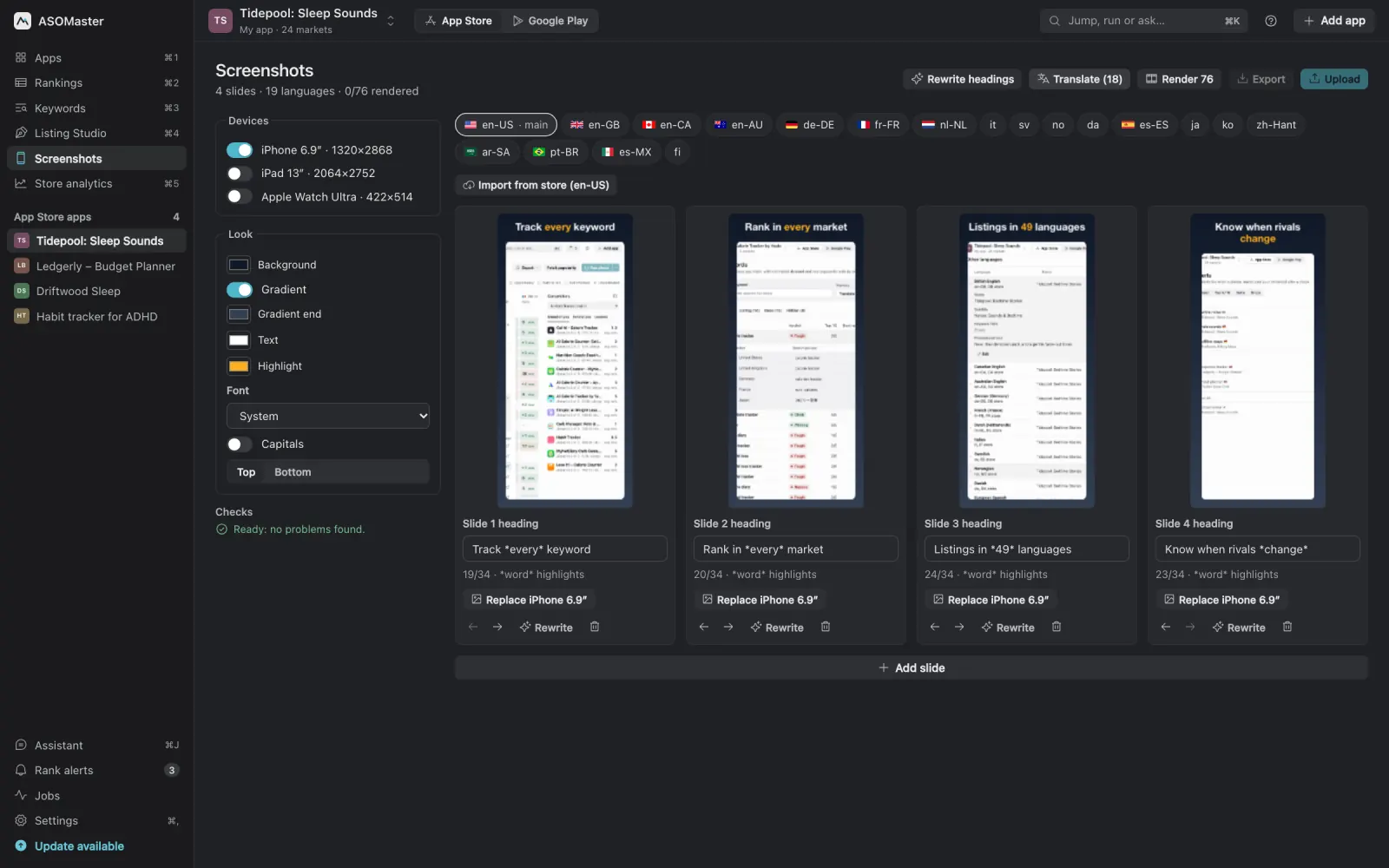
ASOMaster turns your app's screens into store screenshots: one heading per slide on a background you choose, rendered at the exact sizes Apple and Google ask for. The AI writes the headings around the phrases you track and adapts them to every language of your listing, and ASOMaster uploads the finished set to App Store Connect or Google Play when you click Upload to App Store Connect or Upload to Play Console. Nothing is submitted for review.
How does it work?
- Add slides. Pick a PNG or JPEG for each device, or import the screenshots that are live on your store listing today and start from those.
- Write the headings. Type them, or let the AI write one line per slide: an action word, one benefit, at most 34 characters (40 for Japanese, Chinese, Korean, Arabic and other scripts without capitals). Wrap a word in
*asterisks*to show it in the highlight colour. - Translate. The AI adapts every heading to each language of your listing, using that language's own name, subtitle and keywords so the screenshots repeat the words people search for there. A heading written from an older version of the main heading is flagged until you translate it again.
- Render, export or upload. ASOMaster draws every slide for every language and device, then exports a zip (one folder per language, with a checksum file) or uploads the set to the stores.
Which sizes does it make?
| Store | Device | Size (pixels) | Slides |
|---|---|---|---|
| App Store | iPhone 6.9″ | 1320 × 2868 | up to 10 |
| App Store | iPad 13″ | 2064 × 2752 | up to 10 |
| App Store | Apple Watch Ultra | 422 × 514 | up to 10 |
| Google Play | Phone | 1080 × 1920 | up to 8 |
| Google Play | 10″ tablet | 1600 × 2560 | up to 8 |
| Google Play | Feature graphic | 1024 × 500 | 1 (from slide 1) |
Apple asks for the 6.9″ iPhone set and scales it down for smaller iPhones, so one iPhone set covers them. Each device can use a different image on the same slide, and each language can replace any image with its own, for example a screenshot of the app running in German.
What can you change in the design?
- Background colour, with an optional top-to-bottom gradient.
- Heading and highlight colours, four font styles, capitals on or off, heading at the top or the bottom.
- The order of slides, and which devices you make.
Before you export, ASOMaster checks the set: devices without an image, headings over the limit for their script, languages that still use the main heading, and headings that are hard to read on the background (it measures the colour contrast and asks for at least 4.5:1).
How does upload work?
With App Store Connect connected, ASOMaster replaces the screenshots of each device and language on your editable version. The new images go up first and the old ones are removed after, so a failed upload leaves the live set as it was. On Google Play it writes phone and tablet screenshots and the feature graphic in one edit and commits it without sending it for review. Setup is in the App Store Connect and Google Play guides, and the screenshots guide walks through the whole flow.
An AI agent connected through the MCP server can read the design and write or translate headings, but only you can start an upload, from the app.
Screenshots in every language
Most screenshot tools stop at one language. ASOMaster already knows each market's language and keywords from localization, so the screenshots follow the listing: the same phrases appear in the name, the subtitle and the headings. That matters because the first screenshots show up in search results, before anyone opens your page.