Using AI agents and MCP for ASO workflows
Let Claude Code, Codex or another MCP client run keyword research, rank checks and listing drafts in ASOMaster: workflows, prompts and safety rules.
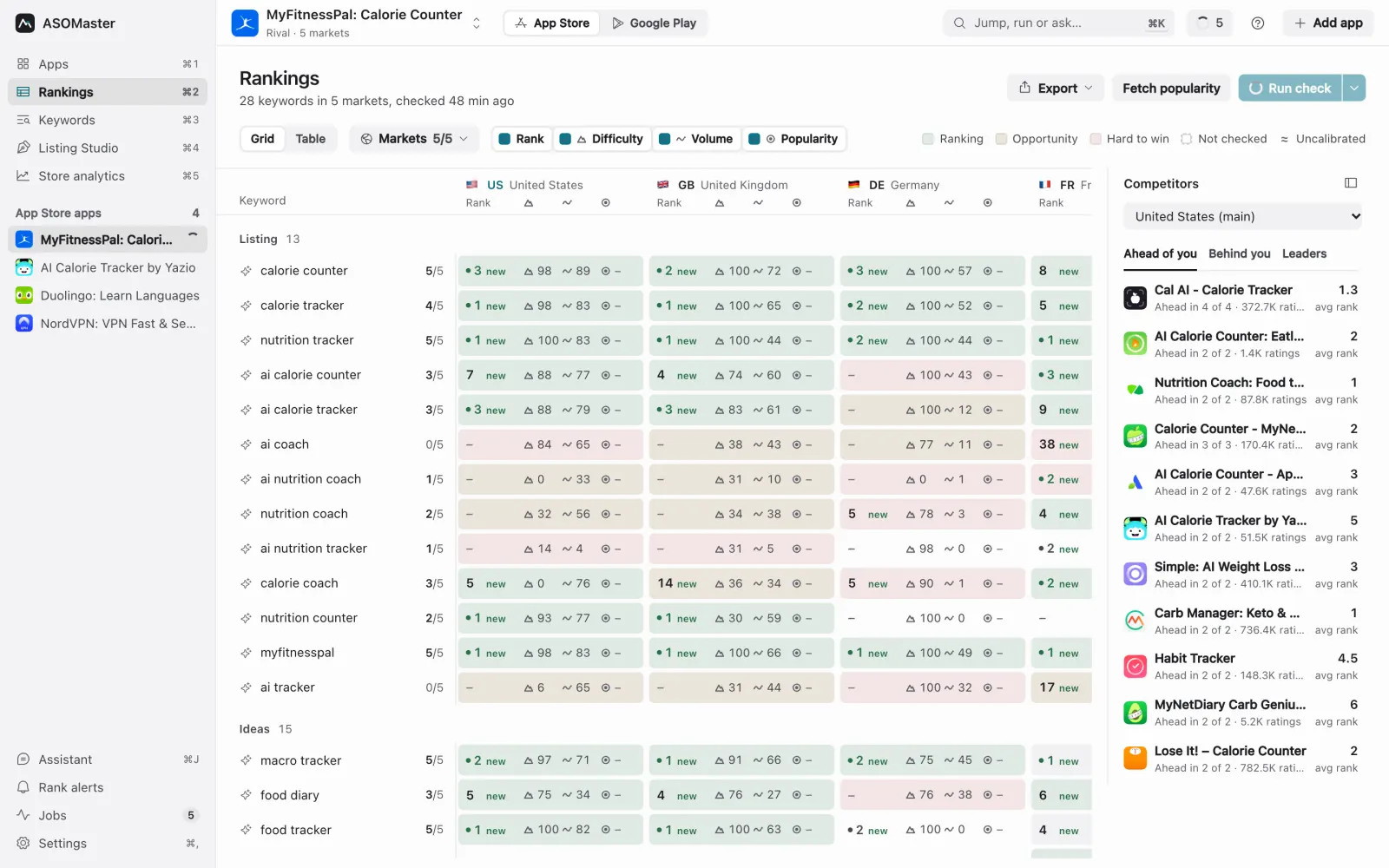
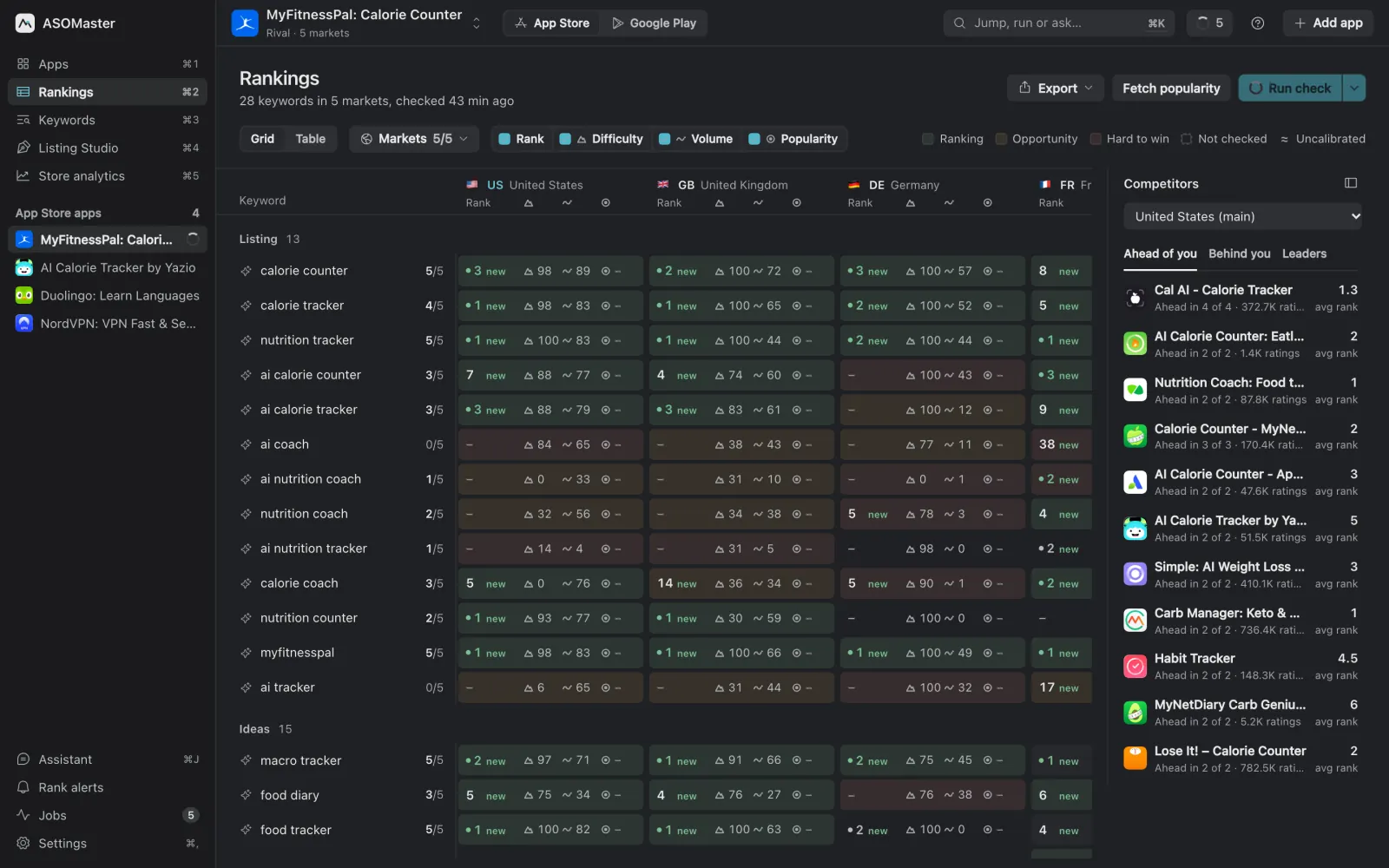
App store optimization has a lot of steps that are tedious rather than hard: add forty candidate phrases, check them in eighteen markets, wait, sort, hide the dead ones, look up who ranks above you in each market, draft a subtitle, check it again. An AI agent is good at exactly that kind of work, as long as it has real data to work with and clear limits on what it may change.
This guide shows how to connect an agent such as Claude Code or Codex to ASOMaster through the Model Context Protocol (MCP), which workflows it handles well, how to prompt it, and the safety rules that keep it from touching your live store listing without you.
What is MCP?
MCP, the Model Context Protocol, is an open protocol that lets an AI application call tools provided by another program (introduction at modelcontextprotocol.io). The program exposes named tools with typed inputs; the agent decides when to call them and reads the results. ASOMaster ships an MCP server so agents can work with your ASO data.
The server, asomaster-mcp, runs over stdio and forwards each tool call to the running desktop app. Whatever the agent does shows up live in the app window, so you can watch it work and step in at any point.
What can an AI agent do in ASOMaster?
Almost everything you can do in the app: read boards and single keywords, add apps and rivals, build keyword lists with a local phrase per market, run rank checks, fetch popularity, and draft, localize and (with your approval) publish listings. The server exposes 57 tools, in these groups:
| Group | Examples | What they are for |
|---|---|---|
| Read | get_overview, get_project_board, get_term_detail, list_markets, search_store, list_rank_alerts |
Look at projects, boards, single keywords, markets and alerts |
| Apps and rivals | add_app, add_console_apps, brainstorm_project, set_project_markets |
Track your apps, rivals and niche ideas |
| Keywords | add_keywords, suggest_keywords, localize_keyword, set_market_phrase, edit_keyword |
Build and tidy the keyword list, with a local phrase per market |
| Checks | run_rank_check, fetch_popularity |
Search the stores and fetch real popularity |
| Listing Studio | optimizer_start, optimizer_choose, optimizer_localize, get_optimizer, publish_listing |
Draft, choose, localize and publish a listing |
| Jobs | wait_for_jobs, stop_job |
Wait for background work |
The full list, with every parameter, is in the MCP docs.
Two design choices matter for how agents behave:
- Estimates and real popularity are separate fields.
estVolandestDiffare ASOMaster's modelled estimates;popis real popularity from Apple Ads, Google Ads or an imported file, and it only exists when a source is connected. The server's instructions tell the agent never to present one as the other. If you want the background on why, read keyword difficulty and search volume. - Store and AI work runs as background jobs. Tools like
run_rank_checkoroptimizer_startqueue a job and return immediately. The agent then callswait_for_jobs, which blocks for up to 50 seconds per call, until the work is done. This keeps long rank checks (the stores rate-limit searches) from timing out the agent.
Connecting a client
The simplest route is in the app: Settings › MCP clients › Install, for Claude Code, Codex, OpenCode, Cursor, Claude Desktop or Windsurf. To set it up by hand, point the client at the bridge: /Applications/ASOMaster.app/Contents/MacOS/asomaster-mcp on a Mac, %LOCALAPPDATA%\ASOMaster\asomaster-mcp.exe on Windows.
Claude Code (MCP in Claude Code):
claude mcp add --scope user asomaster -- /Applications/ASOMaster.app/Contents/MacOS/asomaster-mcp
Codex, in ~/.codex/config.toml (MCP in Codex):
[mcp_servers.asomaster]
command = "/Applications/ASOMaster.app/Contents/MacOS/asomaster-mcp"
args = []
If ASOMaster is closed when the agent calls a tool, the bridge starts it and retries for up to 30 seconds. The MCP docs have the snippets for every client and a troubleshooting section.
Workflow 1: track your own apps
Prompt: "Add all my App Store apps to ASOMaster, check them in the default markets, and tell me where each one is outside the top ten on its listing phrases."
What a good agent does:
list_console_appsto see the apps in your connected App Store Connect account, thenadd_console_apps.wait_for_jobsuntil the apps are imported and seeded with keywords.run_rank_checkfor each project, thenwait_for_jobsagain. Large boards take a few minutes.get_project_boardper project withsection: "listing", sorted by rank.- A short summary per app: phrases ranked 11 or worse, with estimated volume and difficulty, and popularity where connected.
This replaces an hour of clicking with a ten-minute wait and a summary you can act on.
Workflow 2: research a rival
Prompt: "Find the app ranking first for 'white noise' in Germany, track it as a rival, and tell me which of my phrases it beats me on there."
search_storewithcountry: "de"and the term. Results mark apps you already track.add_appwithkind: "competitor", thenwait_for_jobs.get_project_boardfor your own project withmarkets: ["de"], which includes the top competitors for that market.get_term_detailon the phrases where the rival is ahead, to see whether the phrase is in its name or subtitle.
For the reasoning to apply to the result, see our guide to competitor analysis for apps.
Workflow 3: research a niche before you build
Prompt: "Brainstorm a niche for a sleep app for shift workers. Check the ideas in the US, UK, Germany and Japan, and list the five phrases with real demand and a beatable top ten."
brainstorm_projectwith a one-line brief and the markets.wait_for_jobs, thenrun_rank_checkand wait again.get_project_boardsorted byopportunity.- A table of five phrases with estimated volume, difficulty and the local phrase per market.
The brief matters. Agents and the in-app AI both use it to keep suggestions on topic, so write two or three sentences about who the app is for.
Workflow 4: a weekly refresh
Prompt: "Run this week's rank check for Tidepool and tell me what changed. Hide phrases with no demand in any market."
run_rank_check(results already checked today are reused unlessforceis true), thenwait_for_jobs.list_rank_alertsfor moves into or out of the top three and top ten.get_project_boardand compare rank with previous rank per market.edit_keywordwithhidden: truefor phrases that have no demand anywhere. Hidden keywords stay tracked but leave the active board, so this is reversible.
Ask for the list of phrases to hide before it hides them if you want to review first. Most agents will do that if you say so in the prompt.
Workflow 5: a listing draft, localized
Prompt: "Draft new App Store listing options for Tidepool in English, pick the one with the best reach that keeps 'sleep sounds' in the name, localize it for German, French and Japanese, and show me the final text. Do not publish."
optimizer_startwith the main locale. The app scouts phrases, measures them and has the AI write several options, each scored for reach and difficulty against the live listing.wait_for_jobs, thenget_optimizerto read the options.optimizer_choosewith the option and the core phrases every language must carry.optimizer_localizefor the three locales. Candidate local phrasings are measured in each locale's store and the best are used; a locale that fails does not stop the others.wait_for_jobs,get_optimizeragain, and the exact text per language for you to review.
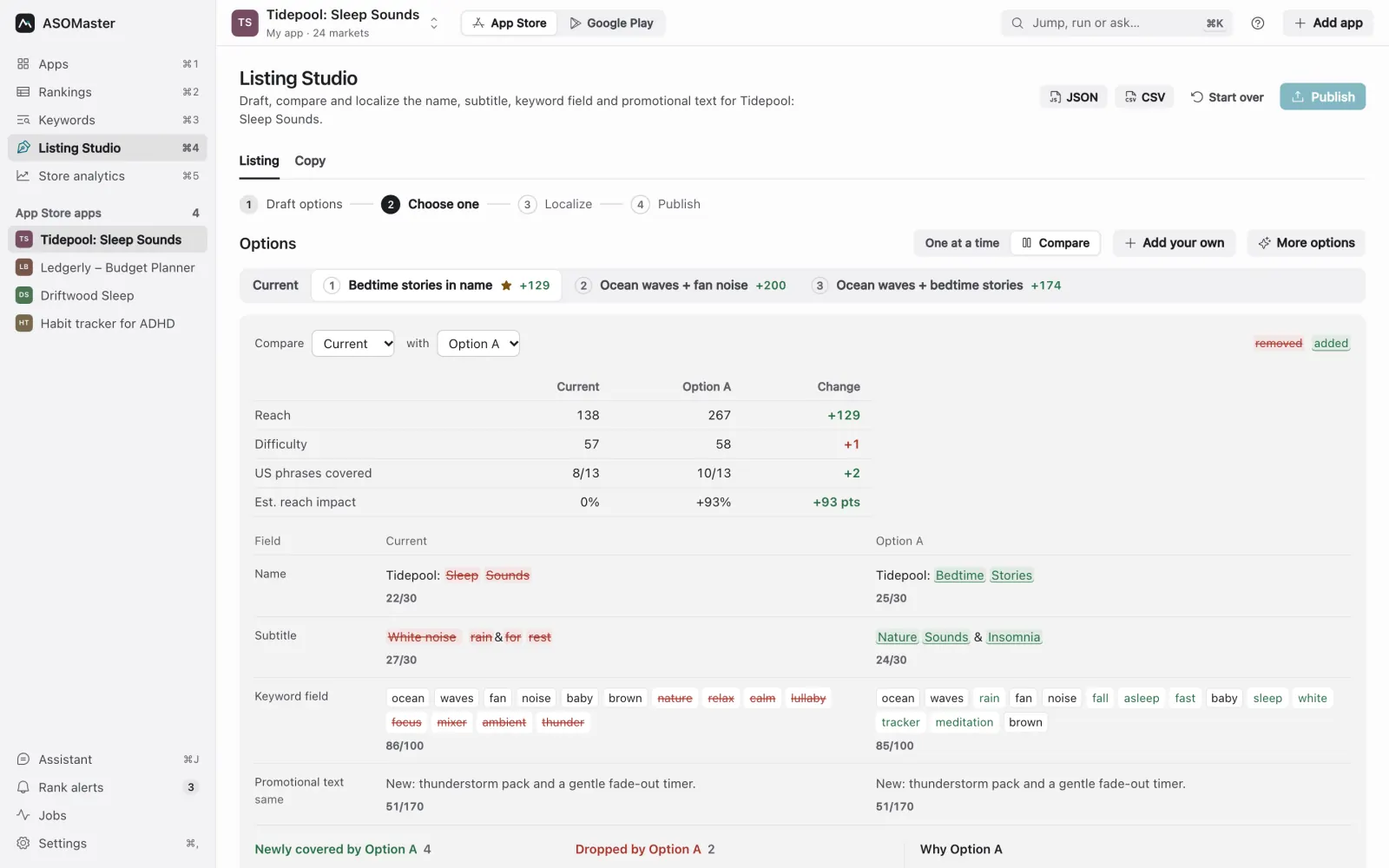
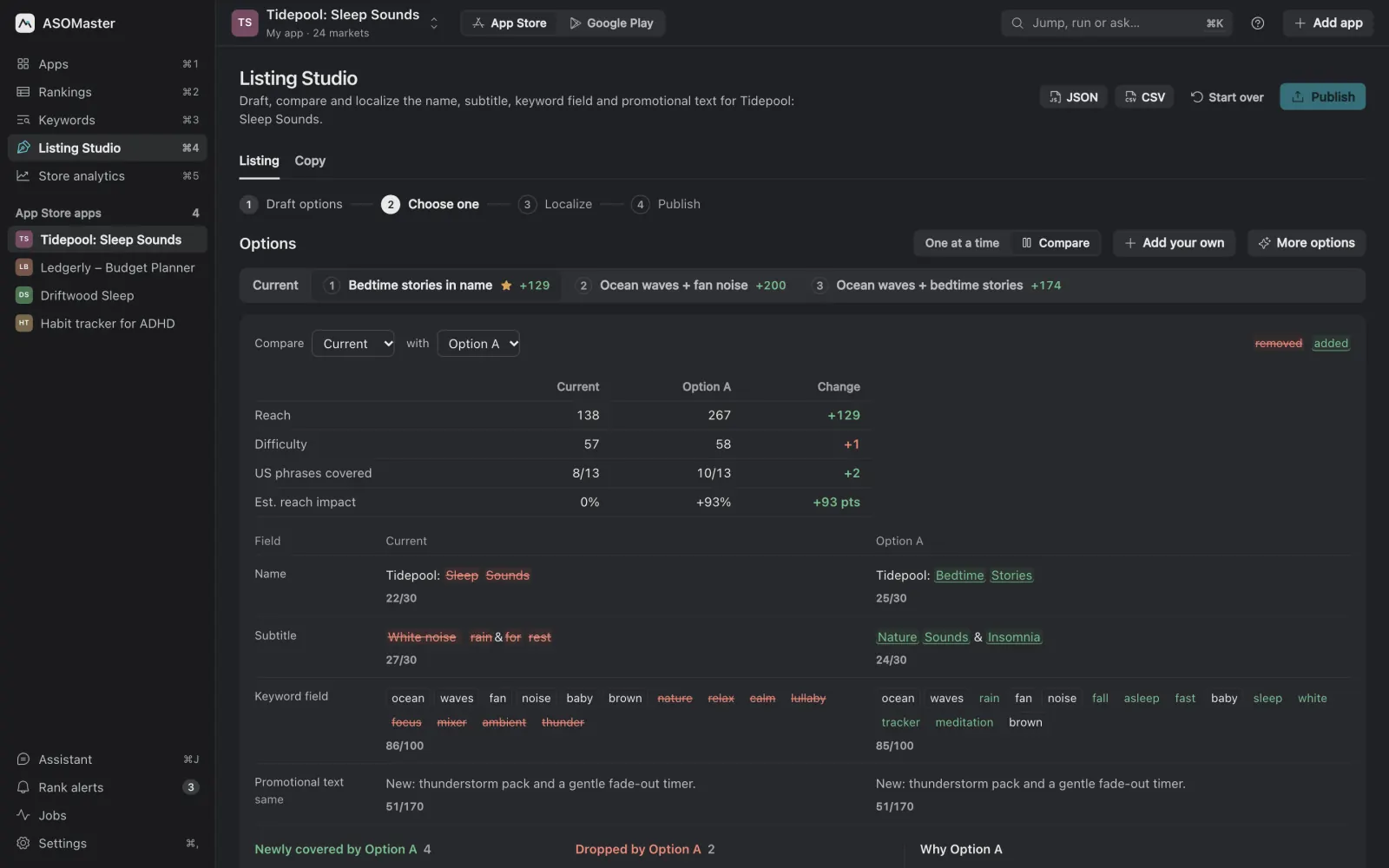
You can open Listing Studio while the agent works and see each step land. If you want to tweak a field, change it in the app; the agent will read your version next time it calls get_optimizer.
Can an agent change my live store listing?
Not without you. To publish, the agent must quote your explicit go-ahead from the conversation, and then the app asks you to confirm in a native dialog that only you can answer. Publishing never submits a version for review. Removing a project needs its exact name, secrets are never returned, and every tool needs an active license.
These rules are built into ASOMaster, not left to the prompt:
- Publishing needs your approval, twice.
publish_listingis marked destructive. It requiresownerApproved: trueand anapprovalfield quoting your go-ahead from the conversation, and the server's instructions tell agents to publish only after you have seen the exact text. Then the app itself shows a native confirmation dialog; anything but clicking Publish cancels. It never submits a version for review; you still do that in App Store Connect. - Removing a project needs its exact name.
remove_projectdeletes nothing unlessconfirmNamematches the project's name, so a stale id cannot remove the wrong app. - Secrets are never returned. To connect App Store Connect, Play Console or an ads source, the agent should pass a file path (
privateKeyPath,serviceAccountPath) rather than paste the key into the chat. The bridge reads the file locally, the app stores the secret in the system keychain (macOS Keychain or Windows Credential Manager), and no tool ever returns it. - Destructive tools are labelled. Each tool carries MCP annotations (
readOnlyHint,destructiveHint), so clients that ask before destructive calls can do so. - A license is required. Without an active license every tool returns
license_required, and the agent tells you to activate.
On your side, two habits help: keep "do not publish" in prompts that should not publish, and read the final text yourself before you say the word.
Prompting tips that save time
- Name the market. "Germany" or
deavoids an agent reading only your main market. With more than four tracked markets, the board returns only the main market unless markets are named. - Ask for estimates and popularity separately. "Show estimated volume and Apple popularity as separate columns" gets you a table you can trust.
- Let it wait. If a check is paused because the store is rate-limiting, the job says so and the agent should keep calling
wait_for_jobs. Tell it not to restart the check. - Keep the brief current. When the product changes direction, update it first (
update_projectwith a new brief), then ask for new ideas. - Ask for a decision, not a dump. "The three phrases to move into the subtitle, and why" is more useful than "all keywords".
Where the AI inside the app fits
ASOMaster also has its own assistant, and brainstorms, drafts and localization run on the AI you already use: Claude Code, Codex, OpenCode, a local model through Ollama, or an Anthropic API key. The MCP route is for when you already work in an agent and want ASOMaster to be one of its tools. The two share the same data, and changes the in-app assistant proposes still need your approval before they apply.
Summary
- MCP lets Claude Code, Codex and other clients call ASOMaster's 57 tools and see the same data you see in the app.
- Long work is queued; agents wait with
wait_for_jobs. - Good fits: importing apps, weekly rank refreshes, rival research, niche research, listing drafts and localization.
- Publishing, removal and secrets are guarded by the server, not by prompt wording.
Set-up details and the full tool reference are in the MCP docs, and ASO tools with an MCP server compares the options. If you are new to ASOMaster, plans are on the pricing page.