ASO checklist before every app update
A pre-release ASO checklist for the App Store and Google Play: what to measure, which fields to change, how to localize and how to read the results.
Every app update is a chance to change your metadata, and on the App Store most of it can only change with a new version. Teams that treat each release as an ASO checkpoint compound small gains: a better subtitle in one release, three new local phrases in the next, a cleaned keyword field after that. Teams that skip it end up with a listing written two years ago for a product that has changed.
This checklist is the routine we recommend for each release. It takes 30 to 60 minutes once you have tracking in place. Skip the steps that do not apply, but do them in this order, because each one feeds the next.
Two weeks before: what should you measure?
Run a fresh rank check in every market, refresh your demand signals, compare ranks with the day before your last release, and note which apps moved above you. That baseline is what you compare against after the release, so record its date. The four steps below take about twenty minutes with tracking in place.
1. Run a fresh rank check in every market you track
You need a current baseline. Check ranks for every listing phrase and every idea in all your markets, not just the main one. Write down, or let your tool record, the date.
- Phrases where you are in the top three: protect them. Do not remove the words that carry them.
- Phrases ranked 4 to 10: candidates to push.
- Phrases ranked 11 to 30 with real demand: the main opportunity pool.
- Phrases with no demand in any market: candidates to drop.
2. Refresh demand signals
If you have Apple Ads or Google Ads connected, fetch popularity after the check so the demand column is current. If not, the estimated volume is fine for triage. Keep the two separate; this guide explains why.
3. Read what changed since the last release
Compare ranks with the day before your previous release, market by market. If you marked the publish date, this is a two-minute read. Look for:
- Phrases that rose after the last metadata change. Keep what worked.
- Phrases that fell. Did a competitor change their listing, or did you remove a word?
- Markets that moved as a group, which usually points to a localization change or a rival's release rather than your English metadata.
4. Check who moved above you
For each market with demand, look at the apps now ranking above you on two or more of your phrases. New names on that list deserve a look at their name and subtitle. Our guide to competitor analysis for apps has the full method.
One week before: what should change in the listing?
Pick at most three phrases to move, then draft the App Store name, subtitle and keyword field, the Google Play title and descriptions, and the description, promotional text and captions around them. Changing more at once makes it impossible to tell afterwards which change helped and which one hurt.
5. Pick at most three phrases to move
The temptation is to rewrite everything. Do not. If you change name, subtitle and keyword field all at once in every language, you cannot tell afterwards what helped. Pick up to three phrases with:
- demand on at least one signal,
- a beatable top ten (moderate difficulty, weaker apps at positions 6 to 10),
- a rank today between roughly 8 and 40, and
- a true fit with what the app does.
For Tidepool, the fictional sleep sounds app from the keyword research guide, the shortlist for version 3.4 might be "brown noise" (rank 24, difficulty 39, rising demand), "fan noise" (not ranked, low difficulty) and "sleep stories" (rank 18, moderate difficulty), with nothing else touched.
6. Draft the App Store fields
On the App Store, search uses your app name, subtitle and keyword field, among other signals (Apple's search guidance). Field limits are 30 characters for the name, 30 for the subtitle and 100 bytes for the keyword field (platform version information). For each draft:
- The highest-value phrase sits in the name or subtitle, ideally as an exact phrase.
- No word appears twice across name, subtitle and keyword field.
- The keyword field uses commas without spaces, singular forms unless the plural is what people type, and no words already in the name or subtitle.
- No competitor names, no "free" unless it is true and useful, and no filler words that nobody searches.
- The name still reads as a name. A brand followed by a clear descriptor beats a list of words.
Write two or three options and compare them on reach (how much demand the covered phrases carry) and difficulty against the live listing. A side-by-side diff makes it obvious which words each option drops. Dropping a word that carries a top-three rank is the most common self-inflicted loss.
For a deeper treatment of these three fields, see how to write an App Store name, subtitle and keyword field.
7. Draft the Google Play fields
Google Play has no keyword field. Google says the text in your store listing helps users discover your app (Get discovered on Google Play search), so the title (30 characters), short description (80) and full description (4,000) carry your phrases, and Google's metadata policy rules out keyword stuffing and misleading text.
- The main phrase in the title, naturally worded.
- The short description states what the app does with one or two target phrases.
- The full description mentions each target phrase where it reads naturally, a few times across the text, never as a list of keywords.
- No ranking claims, no testimonials you cannot back up, no emoji walls in the title.
The Google Play ASO guide covers the full description in detail.
8. Update the description and promotional text
On the App Store the description is for conversion, not search, so write it for people. Promotional text (170 characters) can change at any time without a new version, which makes it the right place for news. Before release, check that both still describe the current product, and that the first lines answer "what is this and why would I want it".
9. Check screenshots and captions against the new phrases
Screenshot captions do not need to repeat your keywords word for word, but they should make the same promise. If your subtitle now leads with "brown noise", the first two screenshots should show it. A listing that ranks for a phrase but does not show it converts poorly, and weak conversion eventually drags the rank down again.
If you have an in-app event coming, draft its name and short description now; events have their own metadata and can appear in search (in-app events).
Do you need to localize for every release?
Yes, for every market you track. The phrases you chose need a local equivalent that people there type, measured in that market's store, and each locale's fields must fit their own limits. Also check which storefronts a localization feeds, because one App Store localization can be searched in several countries.
10. Carry the chosen phrases into each language
For each market you track, the target phrases need their local equivalent: the words locals type, not a dictionary translation. "brown noise" may stay English in some markets and become a local term in others. Measure the candidates in that market's store and pick by demand and difficulty. The localization guide explains how.
- Each locale's name, subtitle and keyword field fit their limits in that language.
- Phrases that already rank in the top ten locally are kept.
- English is used only where people search in English.
- Locales you add for the first time are listed separately, so you can read them in isolation later.
11. Remember the extra storefronts
On the App Store, one localization can be searched in several storefronts. Some countries index more than one language. A change to your English (UK) listing, for example, reaches more storefronts than the UK alone. Check which markets a locale feeds before you assume a change is local to one country (localize app information).
Release day
12. Publish the metadata with the build
- Every locale's fields are filled and saved in the new version (App Store Connect) or the release edit (Play Console).
- You reviewed the final text in each language yourself, or had someone who reads it check the main markets.
- The release date is recorded, so rank history can show a marker on that day.
If you publish metadata from a tool, make sure it writes to a new version without submitting it for review, so you still control when it goes live. ASOMaster works that way: it writes the version or the Play edit and leaves the submission to you.
13. Turn on rank alerts
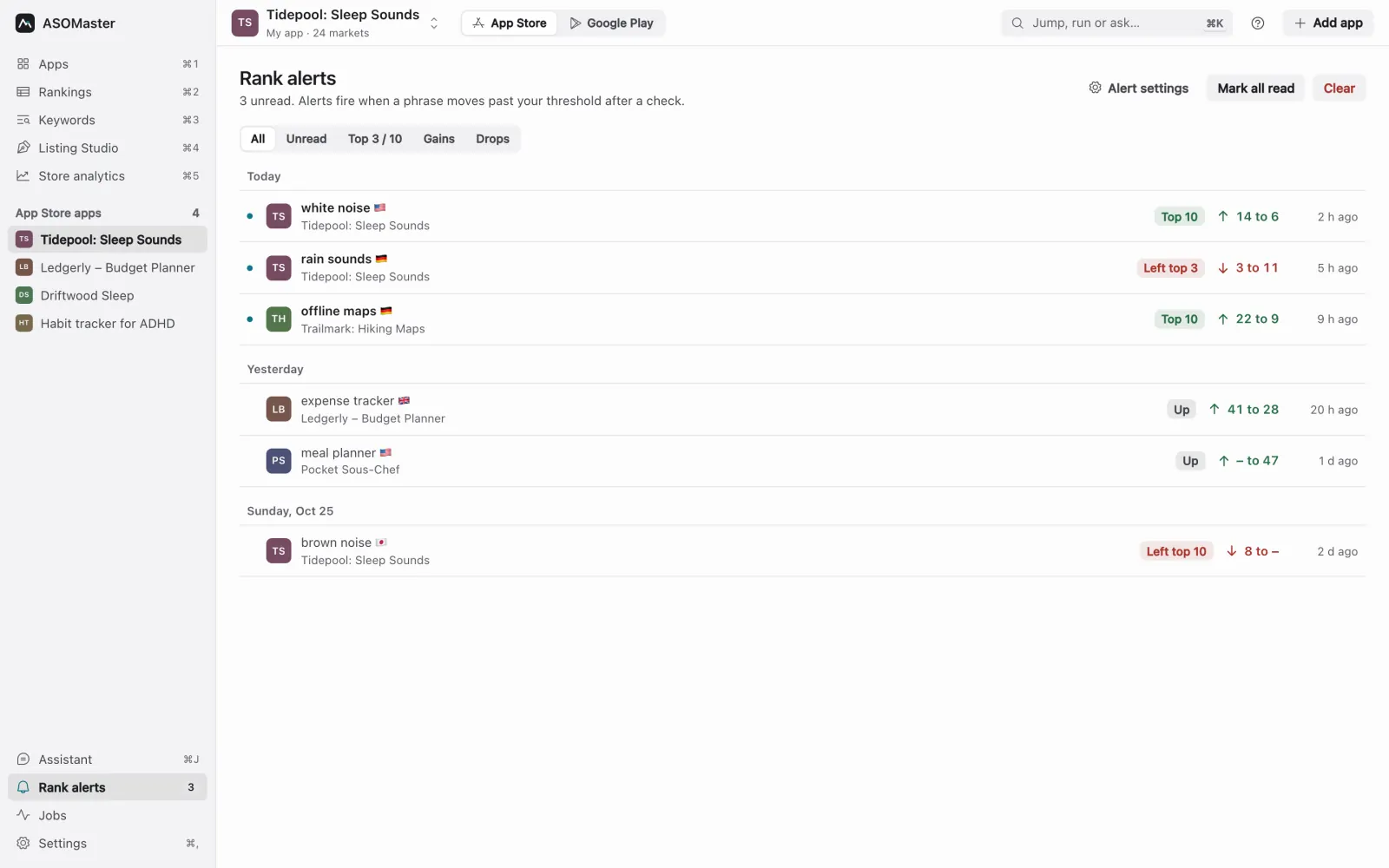
Set alerts for moves into and out of the top three and top ten for your listing phrases. You will hear about large moves without opening anything. Alerts by notification, Slack or email all work; pick the one your team reads.
After release: how do you read the result?
Wait at least a full week, then compare each target phrase's rank before and after the release date in every market, and check conversion for the same period. Read again at two and four weeks. One day's ranks, or a single market, can hide or exaggerate the effect of a change.
14. Wait long enough
Metadata changes take time to settle. Ranks often wobble for several days after a release. Read the first full week, then again at two and four weeks, before you call the change a win or a loss.
15. Compare per market, against the baseline
For each of the three target phrases, in each market, compare rank before and after the release date. Expect a mix: a phrase can climb in the US, stay flat in the UK and fall in Germany because the German version lost a word. The per-market view is where you find that.
| Phrase | Market | Before (3.3) | After 2 weeks (3.4) |
|---|---|---|---|
| brown noise | US | 24 | 9 |
| brown noise | GB | 38 | 22 |
| brown noise | DE (local phrase) | not ranked | 29 |
| fan noise | US | not ranked | 34 |
| sleep stories | US | 18 | 12 |
In this example the change worked for "brown noise" in English-speaking markets, started to work in Germany, and gave "fan noise" a foothold. None of it is guaranteed, and a competitor's release in the same week can hide or exaggerate your effect, which is why you read several weeks and several markets.
16. Check conversion too
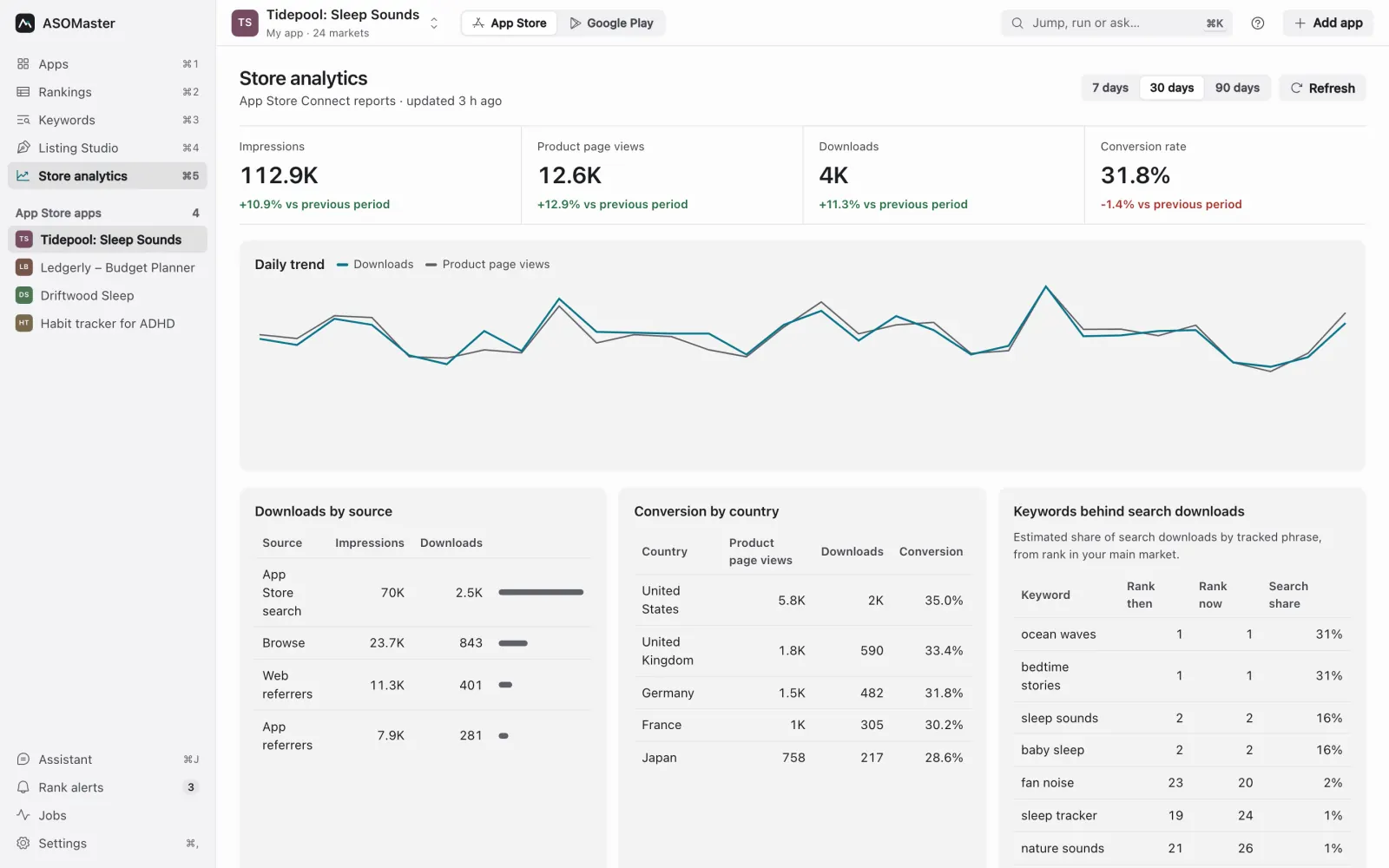
Rank is half the story. In App Store Connect and Play Console analytics, look at product page views and conversion from search for the same period. If impressions rose but conversion fell, the new phrases are bringing people who want something else, or the screenshots no longer match the promise.
17. Write down what you learned
One paragraph per release is enough: what changed, what moved, what you will try next. The next checklist starts from it.
The checklist on one page
- Fresh rank check, all markets.
- Refresh demand: estimates, plus popularity if connected.
- Compare with the last release, per market.
- Check who moved above you.
- Pick at most three phrases.
- Draft App Store name, subtitle, keyword field; compare options.
- Draft Google Play title, short and full description.
- Update description and promotional text.
- Align screenshots, captions and events.
- Localize the chosen phrases with measured local wording.
- Check which storefronts each locale feeds.
- Publish with the build; record the date.
- Turn on rank alerts.
- Wait at least a week.
- Compare per market against the baseline.
- Check conversion.
- Write down what you learned.
ASOMaster covers steps 1 to 15 in one app for both stores, the free App Store metadata checker handles step 6 in a browser, and an agent connected through MCP can run the measuring steps for you (see AI agents and MCP for ASO). Plans are on the pricing page.